CloudFlare Caching
How to configure CloudFlare to cache all your pages for offline viewing when Joes Home Server is offline. But still ping an API endpoint to warn users the site is in maintenance mode.
Please note only pages viewed while Joes Home Server is online will be cached. So if you add a new page to your website, you will need to visit it once while Joes Home Server is online to have it cached for offline viewing.
Steps to Configure CloudFlare Caching
- Select your Domain in CloudFlare you want to configure cachin g for.
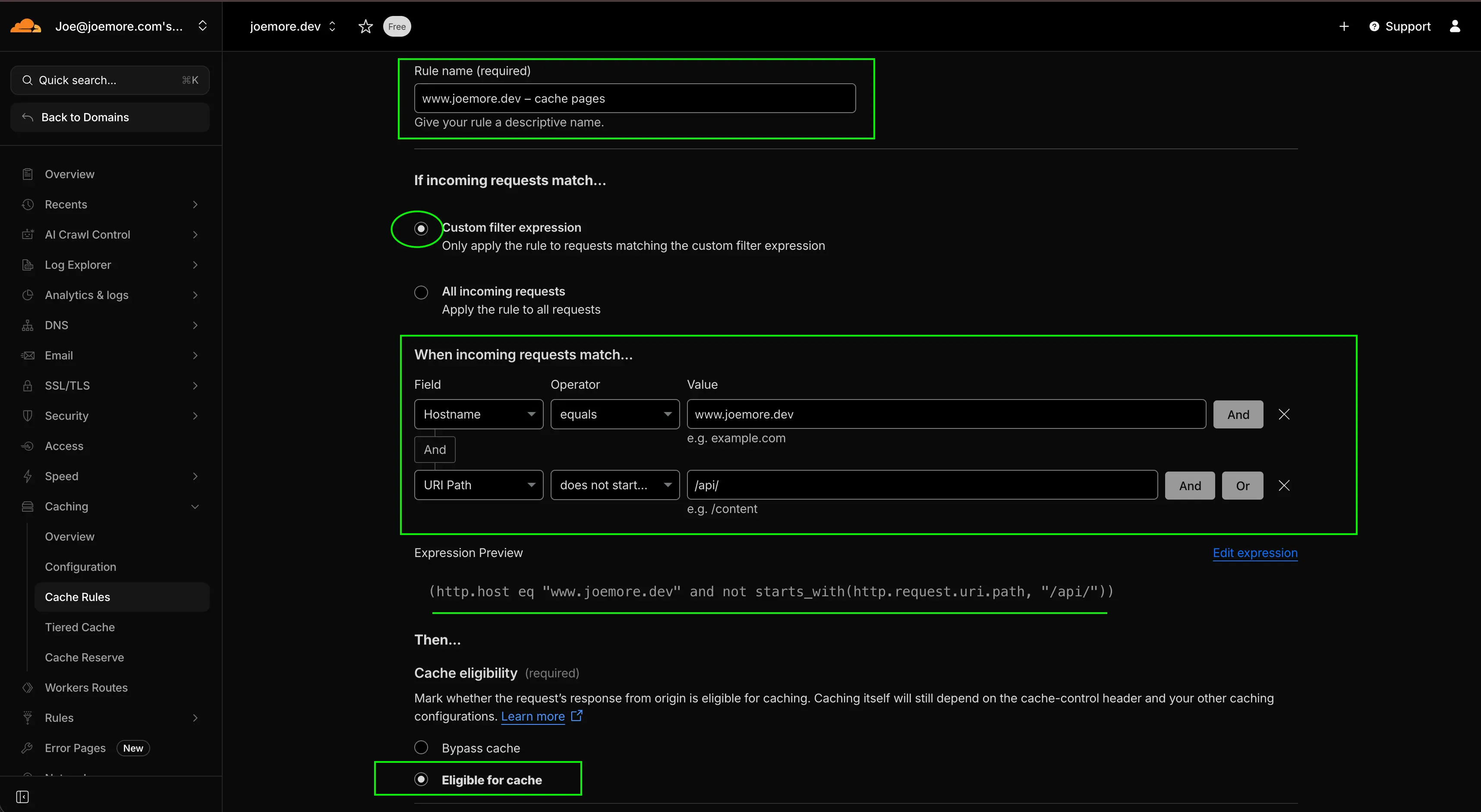
- Go to Caching --> Cache Rules --> Click the "+ Create Rule" button
- Enter a rule name (e.g. "mywebsite.com - Cache All Pages Except API")
- Select "Custom Filter Expression"
- Hostname equals
yourdomain.com(replace with your actual domain) - AND
- URL Path does not start with
/api/ - Then... under Cache Eligibility select "Eligible for cache"
Edge and Browser TTL Settings
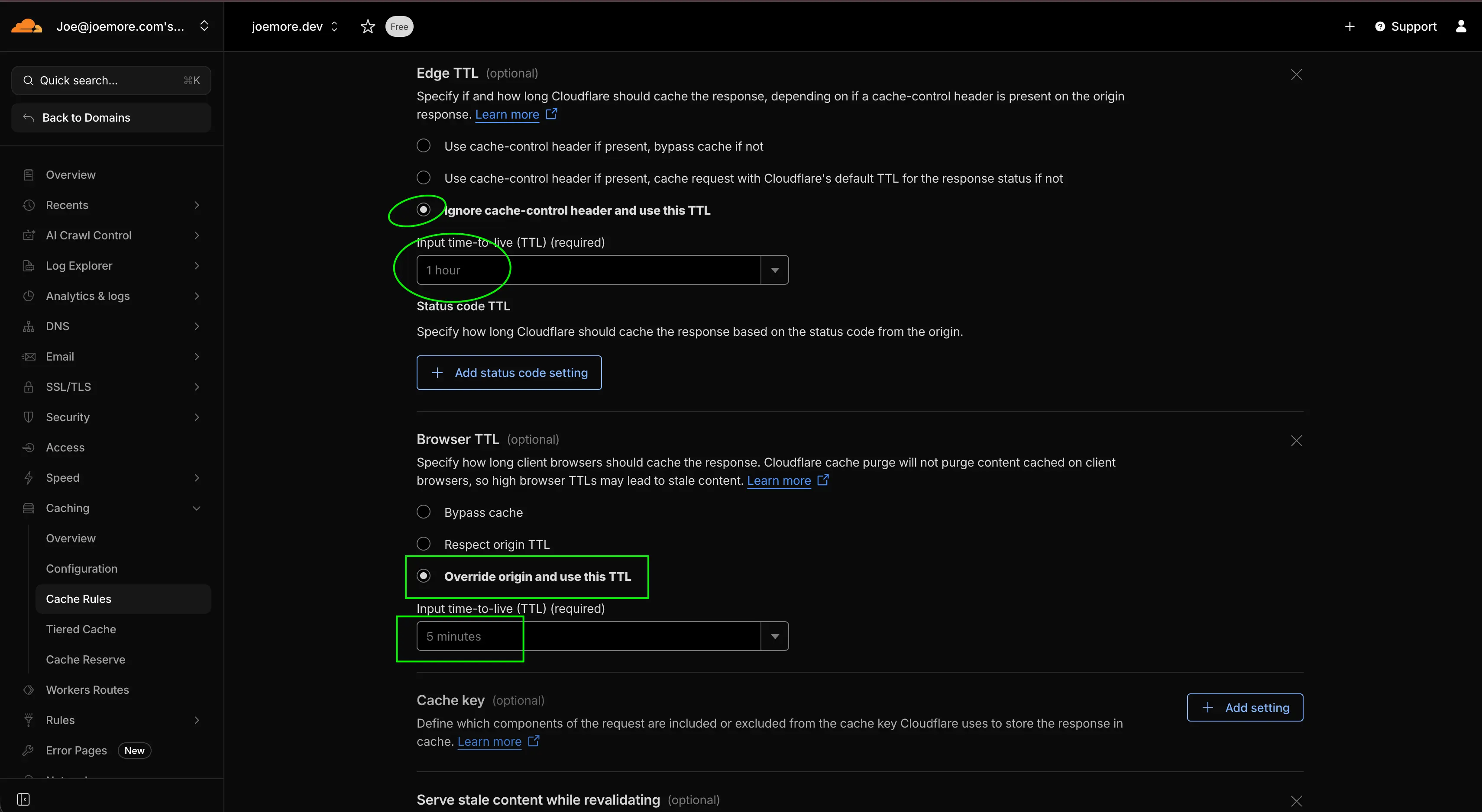
- Under Edge TTL choose:
- Ignore cache-control header and use this TTL
- TTL: 1 Hour
- Under Browser TTL choose:
- Override origin and use this TTL
- TTL: 5 Minutes
Finalizing the Cache Rule
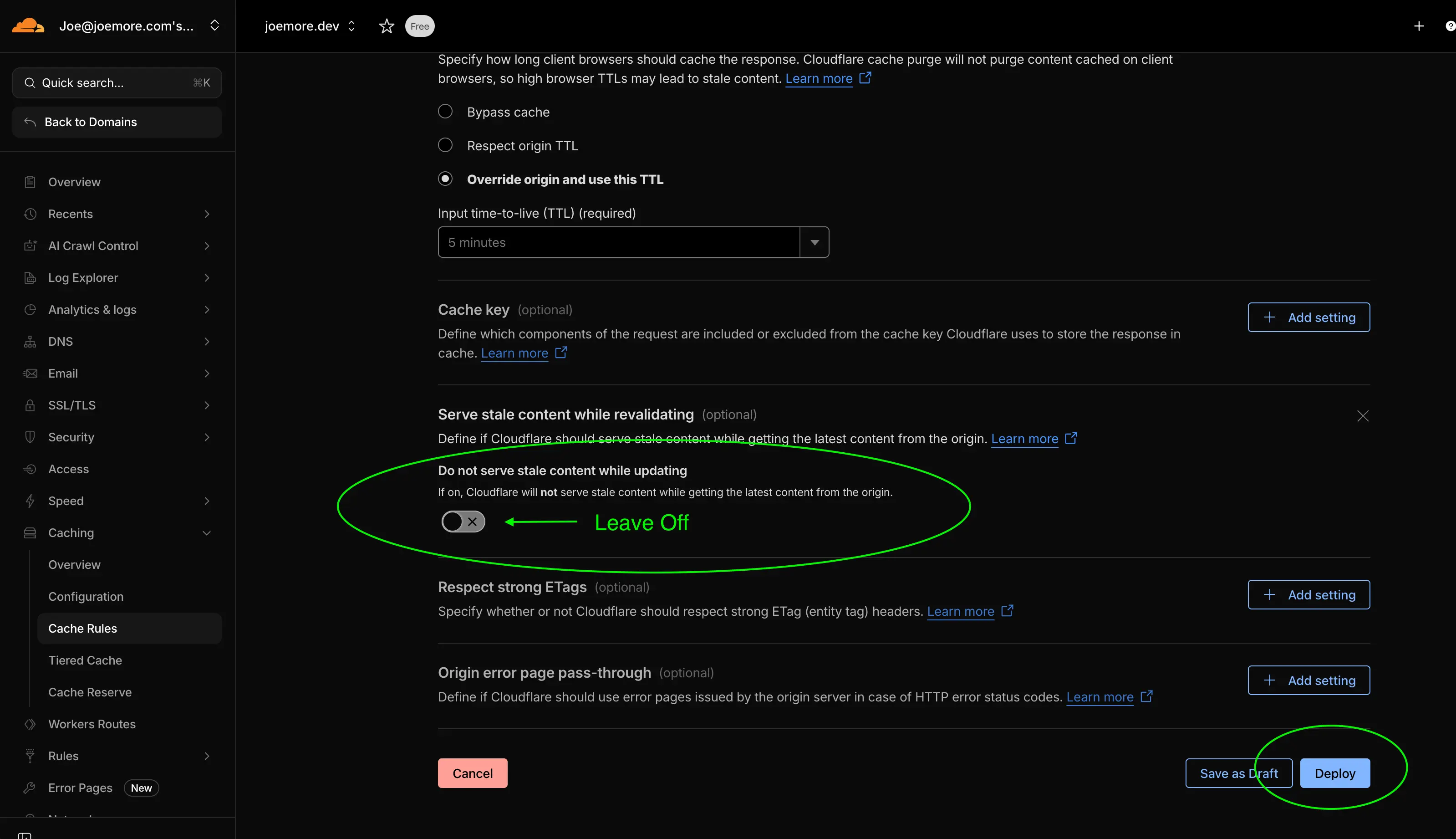
- Under "Serve stale content while revalidating" make sure the toggle is OFF
- Hit "Deploy" button
Testing the Cache
Now visit your page, and reload it a few times to ensure CloudFlare caches it.
You should see CF-Cache-Status: HIT
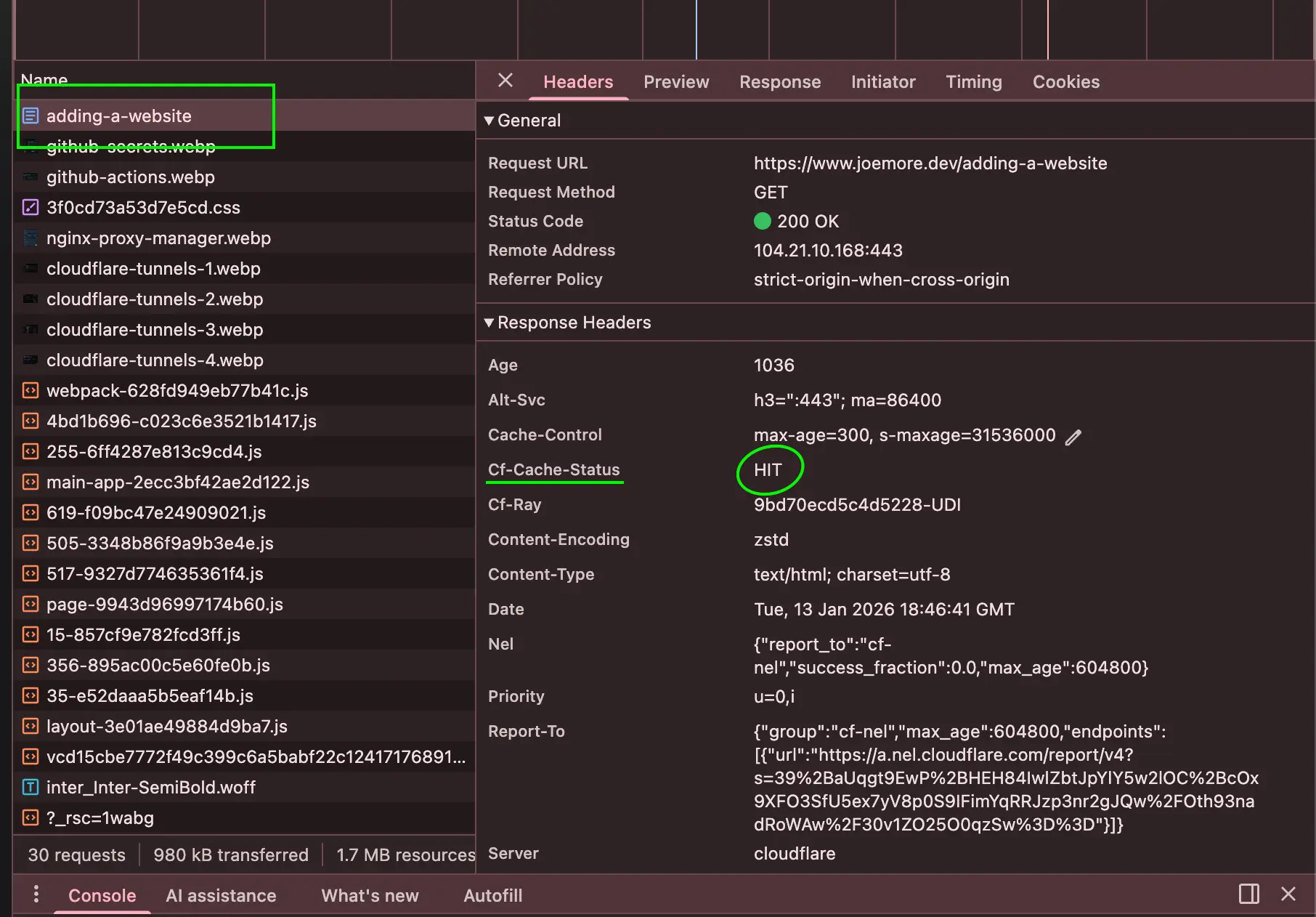
Now the moment of truth!
Turn off Joes home Server (or just disconnect its network cable) and try to visit your website again. It should load as normal, served from CloudFlare's cache!
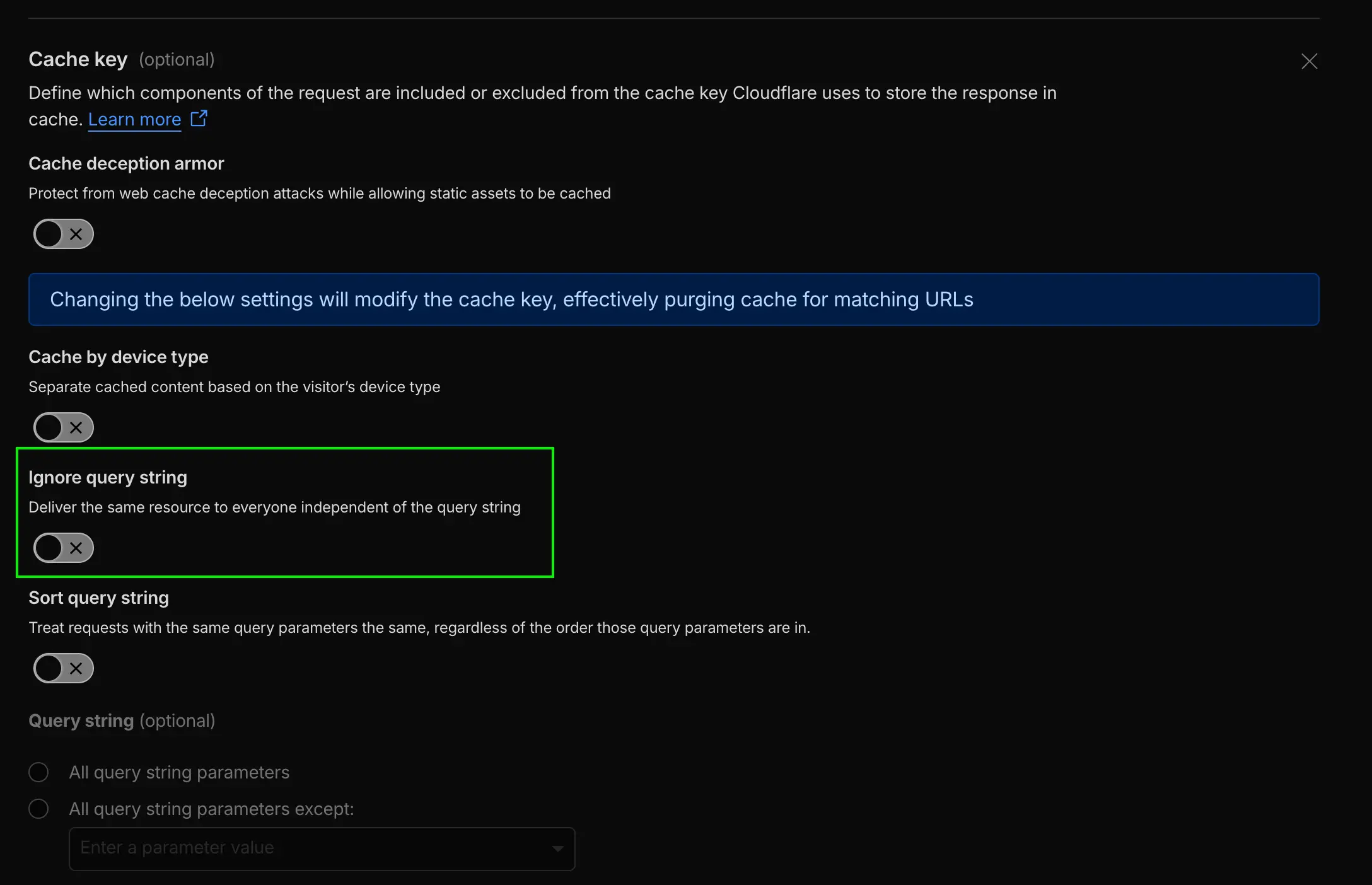
Note about using /?query=strings
By default our caching above ignores query strings. So if you visit yourwebsite.com/?test=1 it will not be cached and treated as a new page.
This can actually be useful if you want to have certain query strings bypass the cache (e.g. for A/B testing or tracking parameters).
If you want to ignore query strings and have all URLs cached regardless of query parameters, you can modify the cache rule: